
You know those courtroom dramas where the defendant says, "I didn't even know that was a law"? The judge never cares. The jury never cares. The dramatic music doesn't care. And right now, thousands of small business owners are starring in their own version of that scene - except the law is the ADA, the courtroom is federal court, and the plot twist is that their website is the building without a ramp.
Website accessibility small business compliance isn't some future regulation your accountant will warn you about eventually. It's happening now. Boston 25 News recently investigated a surge of ADA website lawsuits hitting small businesses - and the targets aren't Fortune 500 companies. They're bakeries. Salons. Local plumbers. Businesses with five employees and one website they paid $800 for in 2019.
By the end of this guide, you'll know exactly how to audit your site, fix the most common issues, and sleep at night without dreaming about cease-and-desist letters. Let's go.
What You Need Before Starting
Nothing fancy. Seriously.
- Your website's URL (you'd be surprised)
- About 45 minutes
- Access to edit your site - whether that's WordPress, Squarespace, Wix, or whatever your nephew set up
- A willingness to right-click things and look at code for about 30 seconds at a time
That's it. No special software. No $200/month subscription. No hiring a consultant who uses the word "audit" like it's a spell.
Step 1: Run a Free Accessibility Scan
Go to wave.webaim.org and paste in your URL. WAVE is free, built by Utah State University, and will give you a full report of accessibility errors, warnings, and things that need a human eye.
You'll probably see a lot of red icons. Don't panic - that's normal. A typical small business site has 15 - 40 errors, and most of them are the same three problems repeated across every page. Think of it like a health checkup where the doctor says you need to drink more water. Fourteen times.
Step 2: Fix Your Images (Alt Text)
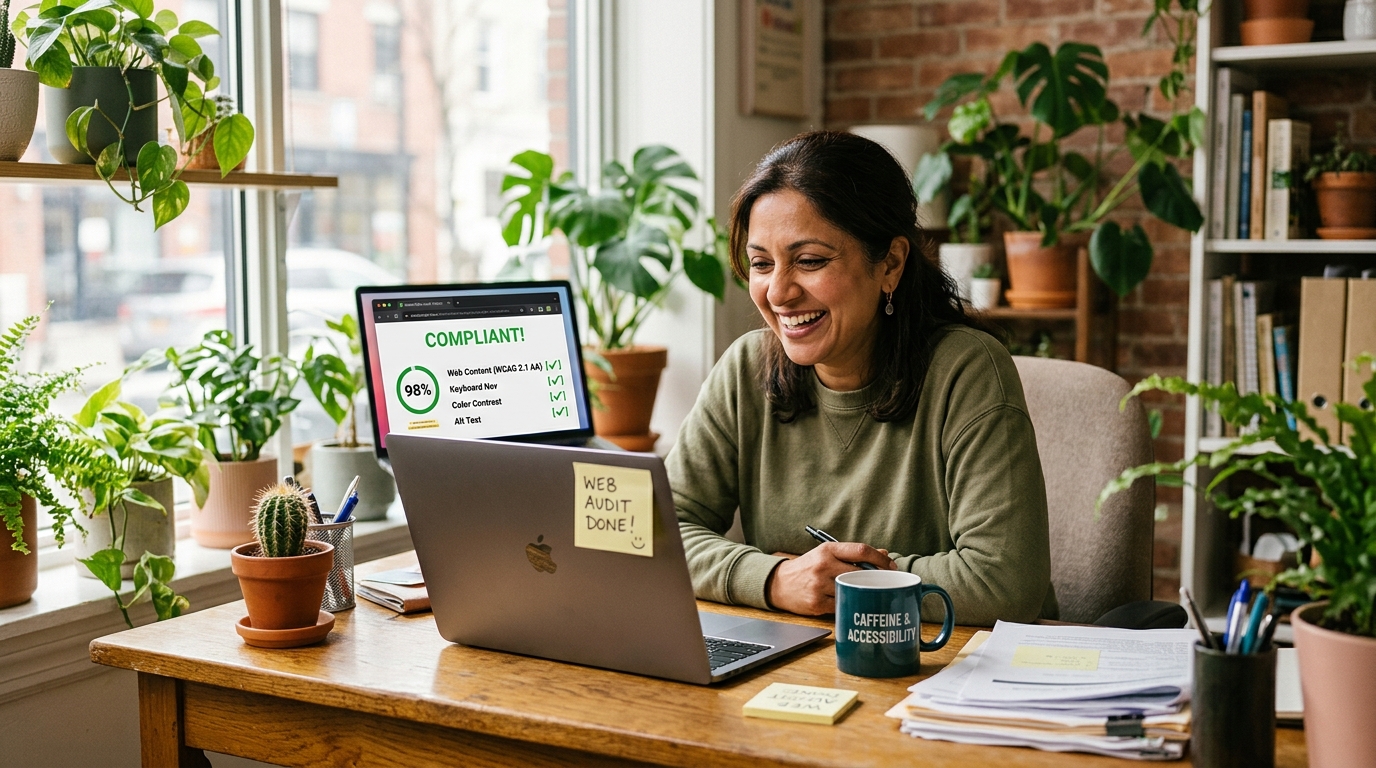
Not alt="image1.jpg". Not alt="" on a photo of your storefront. Actual descriptions.
Good: alt="Front entrance of Rosie's Flower Shop on Main Street, Sunnyvale"
Bad: alt="photo"
Tip: If you use WordPress, you can bulk-edit alt text by going to Media → Library → List View. Click each image, type a description. Put on a podcast. It's tedious but fast.
Decorative images that don't convey information (like a divider line or a background pattern) should have alt="" - that tells screen readers to skip them. It's not laziness, it's correct.
Step 3: Check Your Color Contrast
Light gray text on a white background isn't "minimalist." It's invisible to about 300 million people with color vision deficiency worldwide.
Use WebAIM's Contrast Checker (webaim.org/resources/contrastchecker). Paste in your text color and background color. You need a ratio of at least 4.5:1 for normal text.
The fix is usually just making your gray a little darker. Going from #999999 to #595959 passes the test and still looks clean. Your designer might flinch, but your customers - and the Department of Justice - won't.
Step 4: Make Sure Everything Works With a Keyboard
Close your eyes. No wait, don't - you need to read this. But after you read this, try navigating your website using only the Tab key, Enter, and arrow keys. No mouse.
Can you reach your navigation menu? Your contact form? Your "Book Now" button? If you can't tab to something, a screen reader user can't get there either. And neither can someone with a motor disability using a switch device.
Common culprit: Custom dropdown menus and hamburger menus built with JavaScript that don't have keyboard event handlers. If your menu only opens on mouse hover, it's broken for accessibility. The fix is usually adding tabindex="0" and an onkeydown handler, or - easier - switching to a theme or template that handles this natively.
Step 5: Label Your Forms
Every input field needs a <label> element associated with it. Not placeholder text that disappears when you click. Not a nearby paragraph that sort of implies what goes there.
If your contact form has a field where customers type their email, there needs to be a visible label that says "Email" connected to that field with a for attribute. Screen readers literally cannot tell what a field is for without this.
Tip: If you're on WordPress and use Contact Form 7 or WPForms, both generate proper labels by default. If you're using a custom form - check it. If your web developer used placeholder-only design because it "looked cleaner," that's an accessibility failure and a usability failure. People forget what field they're typing in. Ask anyone over 50. Ask anyone under 50 who's tired.
Step 6: Add Proper Headings
Your page should use heading tags (h1, h2, h3) in order. One h1 per page (your page title), then h2 for sections, h3 for subsections. Don't skip from h1 to h4 because you liked the font size.
Screen reader users navigate by headings the way you navigate by scrolling. If your headings are out of order or missing, it's like ripping the chapter titles out of a book and saying "just keep reading, you'll figure it out."
Step 7: Check Your Links
"Click here" is not a useful link. Neither is "Read more." If a screen reader user tabs through your links, they hear: "Click here. Click here. Click here. Read more. Click here." It's like being stuck in a voicemail maze designed by someone who hates you.
Good link text describes the destination: "View our catering menu" or "Read the full pricing breakdown." Specific. Useful. Not a mystery.
Website Accessibility Small Business Compliance: What the Law Actually Says
The ADA doesn't have a specific "website checklist" in the statute. But courts have consistently ruled that websites count as places of public accommodation, especially if you offer goods or services. The standard most courts reference is WCAG 2.1 Level AA - which is exactly what the steps above help you meet.
In 2026, a new wave of "sue and settle" firms are targeting small businesses specifically because they're less likely to fight back. Missouri's Senate just passed a bill trying to shield businesses from these lawsuits, but most states don't have that protection yet.
The settlement demands typically range from $5,000 to $25,000 - plus you still have to fix the site. Fixing it first costs approximately nothing.
Website accessibility small business owners should think of like a fire extinguisher. You don't wait for the fire to buy one. You don't negotiate with the fire. You just have one.
The "Am I Done?" Checklist
After working through the steps above, run WAVE again. Your error count should be significantly lower. Here's your minimum bar:
- All images have descriptive alt text
- Color contrast passes 4.5:1
- All pages navigable by keyboard
- Form fields have labels
- Headings are in logical order
- Link text is descriptive
That gets you compliant with the vast majority of WCAG 2.1 AA requirements. Is it everything? No. Full accessibility includes things like captions on videos, ARIA labels on complex widgets, and skip-navigation links. But the six items above cover about 85% of the issues found on typical small business sites.
What to Do Next
If your site runs on WordPress, install the WP Accessibility plugin (free). It adds skip links, fixes some common theme issues, and gives you a quick settings panel for contrast and font sizing.
If you want a proper audit - not the automated kind, but a human review that catches the things robots miss - that's something we do at Autom84You. A full accessibility review with fixes typically runs a few hours at $75/hr, which is meaningfully less expensive than a demand letter from a law firm in Florida. Just saying.
And if your site is old enough that fixing accessibility means rebuilding half of it anyway, custom sites start at $500 and come accessible out of the box. Because building it right the first time is cheaper than building it wrong and then also paying a lawyer.
Website accessibility small business compliance doesn't require a committee, a budget meeting, or an enterprise software license. It requires about 45 minutes, a free scanner, and the willingness to care about whether people can actually use the thing you built.
The judge in your imaginary courtroom drama would approve. The dramatic music would swell. Roll credits.
Questions? Weird form bugs? Need someone to just handle it? nerd@a84y.com. I'll be here, adding alt text to things and feeling quietly heroic about it.




Comments
No comments yet. Be the first to share your thoughts!
Leave a Comment