
By the end of this guide, you'll have a faster website and a more accessible one - using the same set of changes. No $300/month speed optimization service required. Just a methodical slow website fix that targets the actual problem instead of papering over it.
Here's what most people do when their site loads in 6+ seconds: they install a caching plugin, add a CDN, maybe compress some images, and call it done. That's the popular path. It works - to a point. But if your underlying HTML is a mess of nested divs, inline styles, render-blocking scripts, and missing semantic structure, you're putting a fresh coat of paint on a wobbly frame.
The quieter approach? Fix the structure first. And the fastest way to fix structure is to make your site accessible. Not because accessibility is a performance tool - it's a civil rights issue - but because the same structural cleanup that screen readers need also happens to be exactly what browsers need to render pages fast.
What You Need Before Starting Your Slow Website Fix
This guide assumes you have:
- Access to your website's HTML/CSS (either directly or through a CMS editor)
- A free Google PageSpeed Insights account (just visit the site - no signup needed)
- A free WAVE accessibility checker (wave.webaim.org)
- About 2-4 hours, depending on how many pages your site has
- Basic comfort reading HTML - you don't need to be a developer, but you should know what a
<div>is
If you're on WordPress, Squarespace, or Wix, every step below still applies - you'll just make the changes through your theme editor or page builder instead of raw code.
Step 1: Run Both Audits Side by Side
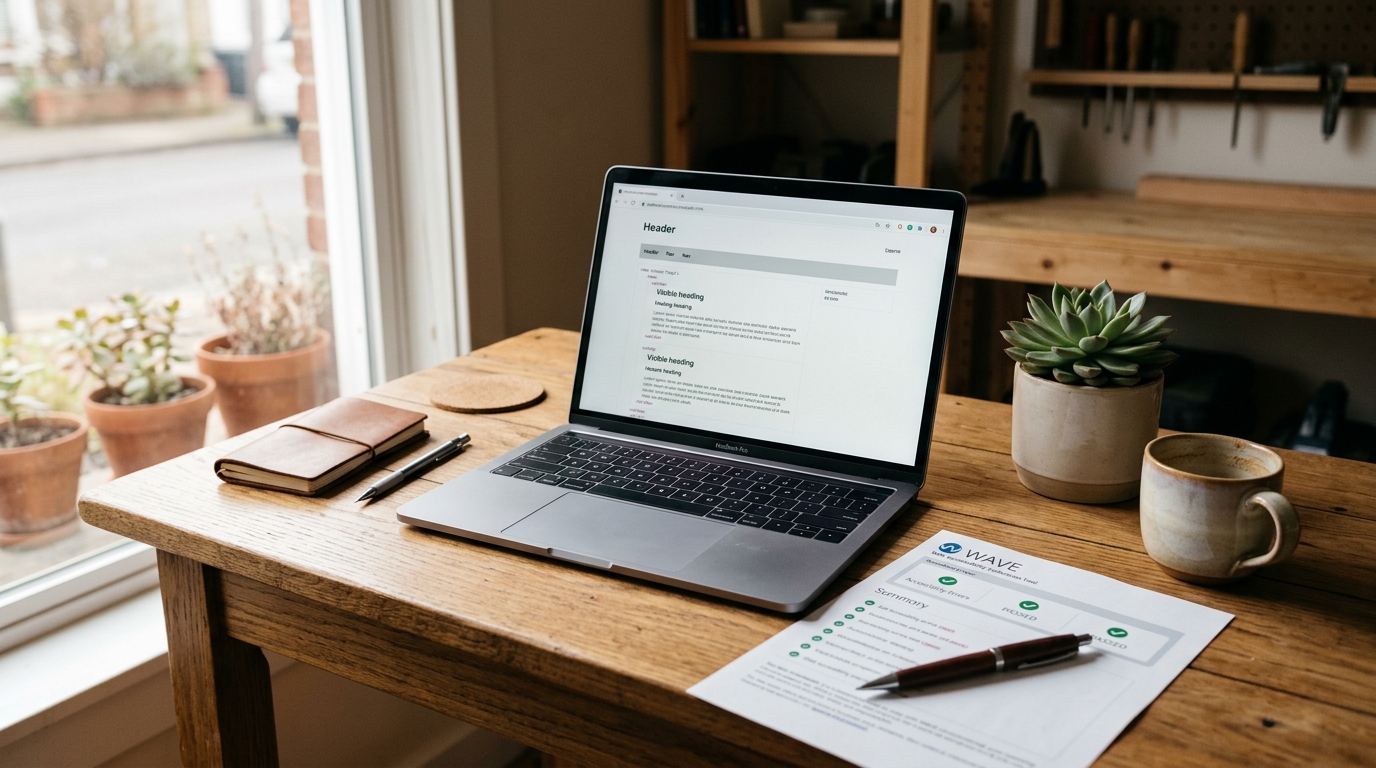
Open Google PageSpeed Insights and WAVE in two browser tabs. Run your homepage through both. You're going to notice something interesting: a lot of the problems overlap.
PageSpeed will flag things like "Eliminate render-blocking resources" and "Reduce unused CSS." WAVE will flag things like "Missing alternative text," "Empty headings," and "Broken ARIA references." But underneath, many of these trace back to the same root cause - bloated, unstructured HTML.
Write down every issue from both tools. Star the ones that appear in both reports. Those starred items are your highest-leverage fixes.
Step 2: Replace Div Soup With Semantic HTML
Open your page source. If you see something like this:
<div class="header"><div class="nav-wrap"><div class="nav-inner">...</div></div></div>
Replace it with:
<header><nav>...</nav></header>
That's three elements instead of six. The browser parses it faster. Screen readers understand it instantly. Google indexes it more accurately. Same content, half the DOM nodes.
Do this across your site: <header>, <nav>, <main>, <section>, <article>, <aside>, <footer>. These aren't suggestions - they're the actual HTML5 elements designed for these purposes. Most page builders generate 3-5x more divs than necessary because they optimize for drag-and-drop editing, not for the browser's rendering engine.
Step 3: Fix Your Heading Hierarchy
WAVE will probably flag heading-level issues. PageSpeed won't - but it should, because broken heading structure forces the browser's accessibility tree to do extra work and confuses crawlers.
The rule is simple: one <h1> per page (your page title), then <h2> for major sections, <h3> for subsections. Never skip levels. Never use headings just because you want bigger text - use CSS for that.
A bakery site I worked on in San Jose had four <h1> tags on a single page, two empty <h3> elements left over from a theme they'd switched from, and no <h2> tags at all. Fixing that alone dropped their DOM complexity score by 18%.
Step 4: Audit and Fix Every Image
This is where speed and accessibility collide most visibly. For every image on your site, check three things:
- Alt text exists and is descriptive. Not
alt="image1". Notalt=""(unless it's purely decorative). Something likealt="Fresh sourdough loaves cooling on a wire rack at Main Street Bakery". - The image is properly sized. If the image displays at 400×300 on screen but the file is 4000×3000, you're sending 10x the data. Resize to 2x display size max (800×600 in this case).
- Modern formats are used. Convert PNGs and JPEGs to WebP. A typical product photo goes from 850KB (JPEG) to 210KB (WebP) with no visible quality loss. For a page with 8 images, that's saving nearly 5MB of transfer.
Tools: Squoosh.app for one-off conversions, ShortPixel ($4.99/mo) for bulk WordPress optimization.
Step 5: Remove Render-Blocking CSS and JavaScript
This is the step most "slow website fix" guides start with. I've put it at step 5 on purpose - if you've done steps 2-4 first, you've already eliminated a lot of the CSS rules and JavaScript that existed only to manage the bloated structure you just cleaned up.
Now audit what's left:
- Move non-critical CSS to load asynchronously. Your above-the-fold styles should be inlined in the
<head>. Everything else - footer styles, animation libraries, print stylesheets - loads after the page renders. - Defer JavaScript. Add
deferorasyncto every<script>tag that isn't needed for initial render. Most analytics, chat widgets, and social embeds can load 2-3 seconds late with zero user impact. - Audit third-party scripts. That Facebook pixel, that abandoned Hotjar snippet, that font library loading 14 weights when you use 2 - each one adds 50-200ms. A dental office in Fremont had 11 third-party scripts, six of which were for services they'd stopped using two years ago. Removing them cut load time from 7.2s to 3.1s.
Step 6: Add ARIA Labels Where Semantic HTML Isn't Enough
If you've done step 2 properly, you need fewer ARIA labels than most guides suggest. ARIA is a supplement, not a replacement. But some things still need it:
- Icon-only buttons (like a hamburger menu):
aria-label="Open navigation menu" - Form fields without visible labels:
aria-label="Search products" - Dynamic content regions that update without page reload:
aria-live="polite"
Each ARIA attribute you add is a few bytes of HTML. But more importantly, well-labeled interactive elements reduce the JavaScript event handlers needed to make them understandable - which means less scripting, which means faster Time to Interactive.
Step 7: Test Your Keyboard Navigation
Put your mouse away. Press Tab. Can you navigate your entire site using only Tab, Enter, and arrow keys? Can you tell where you are on the page at all times (visible focus indicators)?
If not, you've found elements with outline: none in your CSS (a disturbingly common "design" choice) or interactive elements that aren't in the tab order. Fixing these doesn't directly speed up page load - but it forces you to simplify your interactive elements, which usually means less JavaScript and fewer event listeners. Every dog groomer and wedding photographer website I've audited had at least one form that was completely unreachable by keyboard. That's a potential customer who literally cannot book with you.
Step 8: Re-Run Both Audits and Measure the Difference
Run PageSpeed and WAVE again. Compare to your step-1 baseline. Here's what you should see:
- Performance score up 15-40 points (depending on how rough the starting point was)
- Accessibility score above 90 (WAVE should show significantly fewer errors)
- Largest Contentful Paint improved by 1-3 seconds
- Total Blocking Time reduced - often by half
The reason this slow website fix approach works better than just adding a CDN is that you've reduced what needs to be delivered, not just how fast it gets delivered. A CDN delivering 4MB of bloated HTML faster is still delivering 4MB of bloated HTML.
Common Mistakes to Avoid
Don't use an accessibility overlay widget. Products like AccessiBe and UserWay cost $49-490/month, inject 200-400KB of JavaScript onto every page (making your site slower), and have been the subject of multiple lawsuits for not actually meeting WCAG standards. The National Federation of the Blind has publicly condemned overlay products. Do the structural work instead.
Don't over-optimize images to the point of quality loss. A blurry hero image on a photography site defeats the purpose. Aim for 80-85% quality on WebP - the compression artifacts are invisible at that level.
Don't remove all JavaScript. The goal isn't zero JS - it's intentional JS. Keep what matters (booking forms, shopping carts, interactive maps). Remove what doesn't (abandoned A/B tests, triple-redundant analytics, animations nobody asked for).
What to Do Next
If you've followed these steps, your site is already faster and more accessible than roughly 85% of small business websites. According to WebAIM's 2025 annual report, 95.9% of the top million homepages had detectable WCAG failures. You're now in rare company.
Next steps worth considering:
- Run Lighthouse in Chrome DevTools monthly. Performance degrades over time as you add content, plugins, and third-party integrations. A monthly check catches regressions early.
- Check WCAG 2.2 Level AA compliance. What we've covered here gets you most of the way there. The remaining items (contrast ratios, text spacing, focus appearance) are straightforward CSS fixes.
- Consider whether your platform is helping or hurting. If your WordPress theme or Squarespace template generated most of the bloat you just removed - and it'll regenerate it on the next update - it might be time for a purpose-built site. I build these for small businesses starting at $500, and I specifically optimize for speed and accessibility from the first line of code. You can see examples at autom84you.com/pages/portfolio.php.
If you want someone to look at your specific site and tell you honestly whether the slow website fix is a DIY afternoon or a deeper rebuild - reach out at nerd@a84y.com. I'll give you a straight answer, even if that answer is "you're fine, just compress your images." More about what I do at autom84you.com.



Comments
No comments yet. Be the first to share your thoughts!
Leave a Comment